The Hidden Settings That Can Change Your Windows Experience
 techbest@gmail.com
September 1, 2026
techbest@gmail.com
September 1, 2026
Discover hidden Windows settings for a better experience.
8 min read • 1,643 words
Table of Contents
ToggleThe Hidden Settings That Can Change Your Windows Experience
Many users are unaware of the hidden settings in Windows that can significantly enhance their overall experience. These hidden settings windows provide opportunities for customization that can improve productivity, reduce distractions, and even enhance visual comfort. By exploring these features, you can tailor your operating system to better suit your personal preferences and work habits.
In this article, you will learn about several key hidden settings that can transform your Windows experience. From customizing the Start Menu by resizing it and pinning favorite apps for quicker access, to enabling dark mode for reduced eye strain, these adjustments can make a noticeable difference. Additionally, features like ‘Focus Assist’ help minimize distractions by silencing notifications, while ‘Storage Sense’ automatically frees up space by deleting unnecessary files. You’ll also discover how adjusting transparency effects can improve visibility and reduce distractions, making your Windows experience more enjoyable and efficient.
Customizing the Taskbar
The taskbar is a central feature of the Windows operating system, providing quick access to applications and essential tools. By leveraging hidden settings in Windows, you can significantly enhance your taskbar experience. Here are some practical ways to customize it to better suit your needs.
One of the most effective ways to streamline your workflow is by pinning frequently used applications. This allows you to launch your favorite programs with just a single click. To pin an app, simply right-click on its icon in the Start menu or on the desktop and select Pin to taskbar. This ensures that your most-used applications are always readily accessible.
Additionally, adjusting taskbar settings can lead to better organization. Right-click on an empty space on the taskbar and select Taskbar settings. Here, you can toggle options such as combining taskbar buttons, which can save space if you have multiple windows open. You can also choose to show or hide labels, further decluttering your taskbar.
Another useful feature is the ability to add toolbars. Right-click the taskbar, hover over Toolbars, and select New toolbar.... This allows you to create a custom toolbar with shortcuts to specific folders or applications, enhancing functionality and accessibility.
Finally, personalizing the appearance of your taskbar can make your Windows experience more enjoyable. You can change the taskbar color and transparency settings by navigating to Settings > Personalization > Colors. Here, you can select your preferred color and adjust the transparency level, giving your taskbar a fresh look.
By utilizing these hidden settings in Windows, you can transform your taskbar into a powerful tool tailored to your workflow and aesthetic preferences.
Optimizing Privacy Settings
In today’s digital age, privacy is a significant concern for many Windows users. Fortunately, Windows offers several hidden settings that can enhance your privacy experience. By reviewing app permissions, disabling location tracking, managing ad personalization, and controlling data collection, you can take control of your personal information.
One of the first steps in optimizing your privacy is reviewing app permissions. Many applications request access to various features, such as your camera, microphone, or contacts, which may not be necessary for their functionality. To review and modify these permissions, follow these steps:
- Open the
Settingsapp. - Navigate to
Privacy. - Select the specific app category (e.g., Camera, Microphone, etc.).
- Toggle permissions as needed.
Another critical aspect of privacy is location tracking. By default, Windows may track your location for various services. To disable this feature, you can go to:
- Open
Settings. - Click on
Privacy. - Select
Locationfrom the left panel. - Turn off the
Location service.
Managing ad personalization settings is also essential. Windows uses your data to show personalized ads. To limit this, navigate to:
- Open
Settings. - Go to
Privacy. - Click on
General. - Toggle off the
Let apps use advertising IDoption.
Lastly, controlling data collection by Microsoft is vital for maintaining your privacy. You can adjust these settings by going to:
- Open
Settings. - Select
Privacy. - Click on
Diagnostics & feedback. - Choose
Basicinstead ofFullfor data collection.
By implementing these hidden settings in Windows, you can significantly enhance your privacy and security, ensuring a more controlled and personalized computing experience.
Enhancing System Performance
Windows operating systems come with a plethora of hidden settings that can significantly enhance system performance. By making a few adjustments, users can experience a faster and more efficient computing environment. Here are some practical steps to consider:
- Adjusting Visual Effects: Windows offers various visual effects that can slow down performance, especially on older hardware. To adjust these settings, navigate to the System Properties. You can access this by right-clicking on ‘This PC’ and selecting ‘Properties’. From there, click on ‘Advanced system settings’, then under the ‘Performance’ section, click ‘Settings’. Here, you can choose ‘Adjust for best performance’ to disable all visual effects, or manually select which effects to disable.
- Managing Startup Programs: Many applications automatically start when Windows boots, which can significantly increase boot time. To manage these startup programs, open the Task Manager by pressing
Ctrl + Shift + Esc. Go to the ‘Startup’ tab and disable any unnecessary programs. This will help your system start faster and improve overall performance. - Using Storage Sense: Windows 10 and later versions include a feature called Storage Sense, which automatically frees up disk space by removing temporary files and content from the Recycle Bin. To enable this feature, go to ‘Settings’, then ‘System’, and select ‘Storage’. Toggle the switch for Storage Sense to on, and configure how often you want it to run.
- Configuring Power Settings: Adjusting power settings can also lead to better performance. Go to ‘Control Panel’, then ‘Power Options’. Select ‘High performance’ to ensure your system is running at its best, especially during demanding tasks.
By utilizing these hidden settings in Windows, users can significantly enhance their system’s performance, leading to a smoother and more efficient user experience.
Exploring Accessibility Features
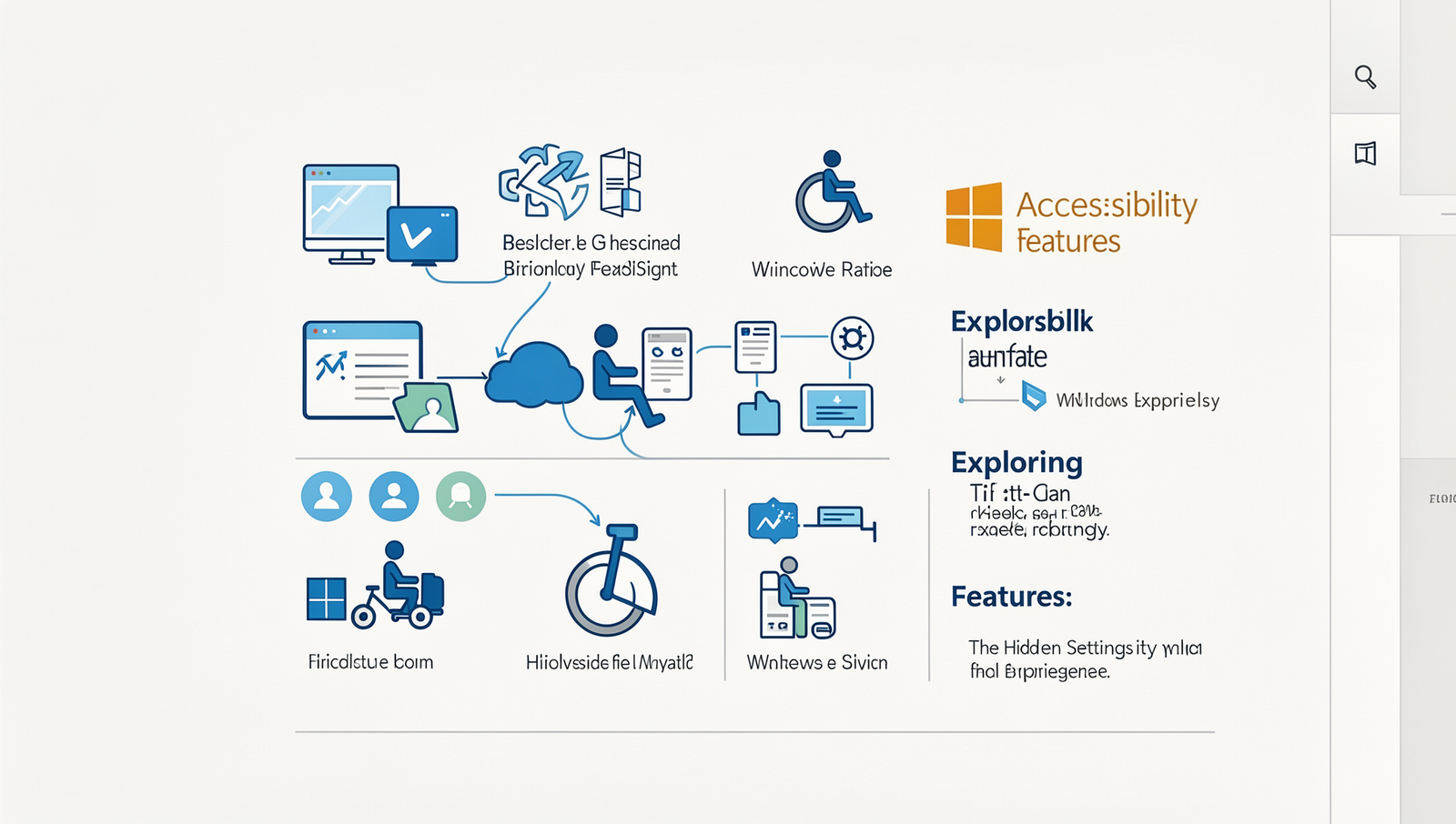
Windows operating systems come equipped with a variety of hidden settings that can significantly enhance user experience, particularly for those with specific accessibility needs. These features are designed to make navigation and interaction with the system easier and more intuitive. Here are some key accessibility features that can transform your Windows experience.
- Enabling Narrator for Screen Reading Assistance: The Narrator feature provides a text-to-speech function that reads aloud the content on your screen. This is particularly useful for visually impaired users. To enable Narrator, you can use the following command:
Settings > Ease of Access > NarratorOnce activated, you can customize the voice, speed, and pitch to suit your preferences.
- Using Magnifier for Better Visibility: The Magnifier tool allows users to zoom in on specific areas of the screen, making text and images easier to see. To turn on the Magnifier, simply press:
Windows key + Plus (+)This feature can be adjusted to follow the cursor or the keyboard, providing flexibility based on user needs.
- Customizing Keyboard Shortcuts for Easier Navigation: Windows allows users to create custom keyboard shortcuts for frequently used functions, improving efficiency. You can set these shortcuts in the settings menu under:
Settings > Devices > Typing > Advanced keyboard settings- Setting Up High Contrast Themes for Better Readability: For users with visual impairments, high contrast themes can make text and images stand out more clearly. To enable this feature, navigate to:
Settings > Ease of Access > High ContrastBy selecting a high contrast theme, users can greatly improve their reading experience and reduce eye strain.
By exploring these hidden settings in Windows, users can tailor their experience to meet their individual needs, making the operating system more accessible and user-friendly.
Conclusion
Exploring the hidden settings in Windows can significantly enhance your user experience by providing greater control and customization. From adjusting performance settings to modifying privacy controls, these features allow you to tailor your system to better meet your needs. By taking the time to delve into these options, you can optimize your computer’s efficiency, improve security, and create a more personalized environment that aligns with your workflow. The benefits of utilizing these hidden settings are numerous, including increased productivity and a more enjoyable computing experience.
As you embark on this journey of discovery, consider setting aside time to familiarize yourself with the various hidden settings Windows offers. Start by exploring the settings menu and utilizing online resources to guide you through the process. Remember, the more you understand your system, the better you can leverage its capabilities. Embrace the opportunity to unlock the full potential of your Windows experience by making these hidden settings work for you.
Frequently Asked Questions
What are some hidden settings in Windows that can enhance performance?
Windows offers several hidden settings that can significantly enhance performance. For instance, disabling unnecessary startup programs, adjusting visual effects for best performance, and utilizing the Storage Sense feature can help optimize system speed and responsiveness, especially on older machines.
How can I customize the Windows Start menu?
Customizing the Windows Start menu is straightforward. You can pin frequently used apps, resize tiles, and create folders for better organization. Additionally, accessing the settings allows you to choose which folders appear on the Start menu for a personalized experience.
Is there a way to improve battery life on Windows laptops?
Yes, improving battery life on Windows laptops can be achieved by adjusting power settings. Enabling Battery Saver mode, reducing screen brightness, and disabling Bluetooth and Wi-Fi when not in use can significantly extend battery life during critical times.
Can I change the default apps in Windows?
Absolutely, changing default apps in Windows is simple. You can navigate to Settings, then Apps,