Inside Your PC: Where Does All That Storage Actually Go?
 techbest@gmail.com
September 1, 2026
techbest@gmail.com
September 1, 2026
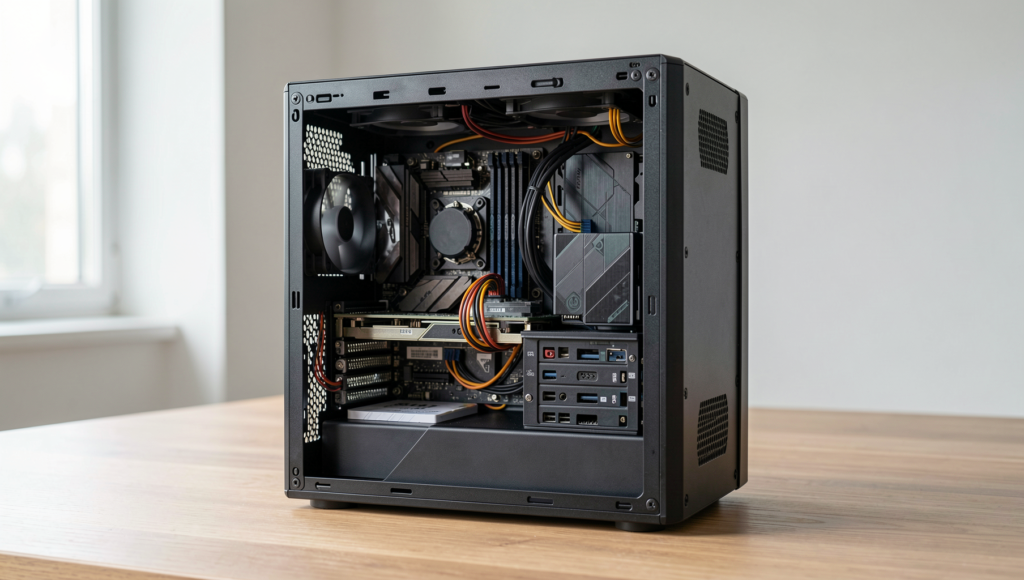
Explore the inner workings of your PC's storage.
8 min read • 1,641 words
Table of Contents
ToggleInside Your PC: Where Does All That Storage Actually Go?
Understanding the intricacies of Inside Your PC storage is essential for anyone looking to optimize their computer’s performance. Most modern PCs utilize a combination of Hard Disk Drives (HDDs) and Solid State Drives (SSDs) for storage solutions. While HDDs offer larger capacities at a lower cost, SSDs provide significantly faster data access speeds, making them ideal for operating systems and frequently used applications. Storage capacities in contemporary PCs can vary widely, ranging from a modest 128GB to several terabytes, depending on the configuration and user needs.
As you delve deeper into the world of computer storage, you’ll learn how data is stored in binary format, organized into bits and bytes, and structured into files and folders. Additionally, the role of cloud storage is becoming increasingly important, allowing users to supplement local storage and access files from anywhere. The motherboard plays a crucial role in this ecosystem, connecting all storage devices to the CPU, facilitating efficient data transfer and communication.
Understanding Storage Types
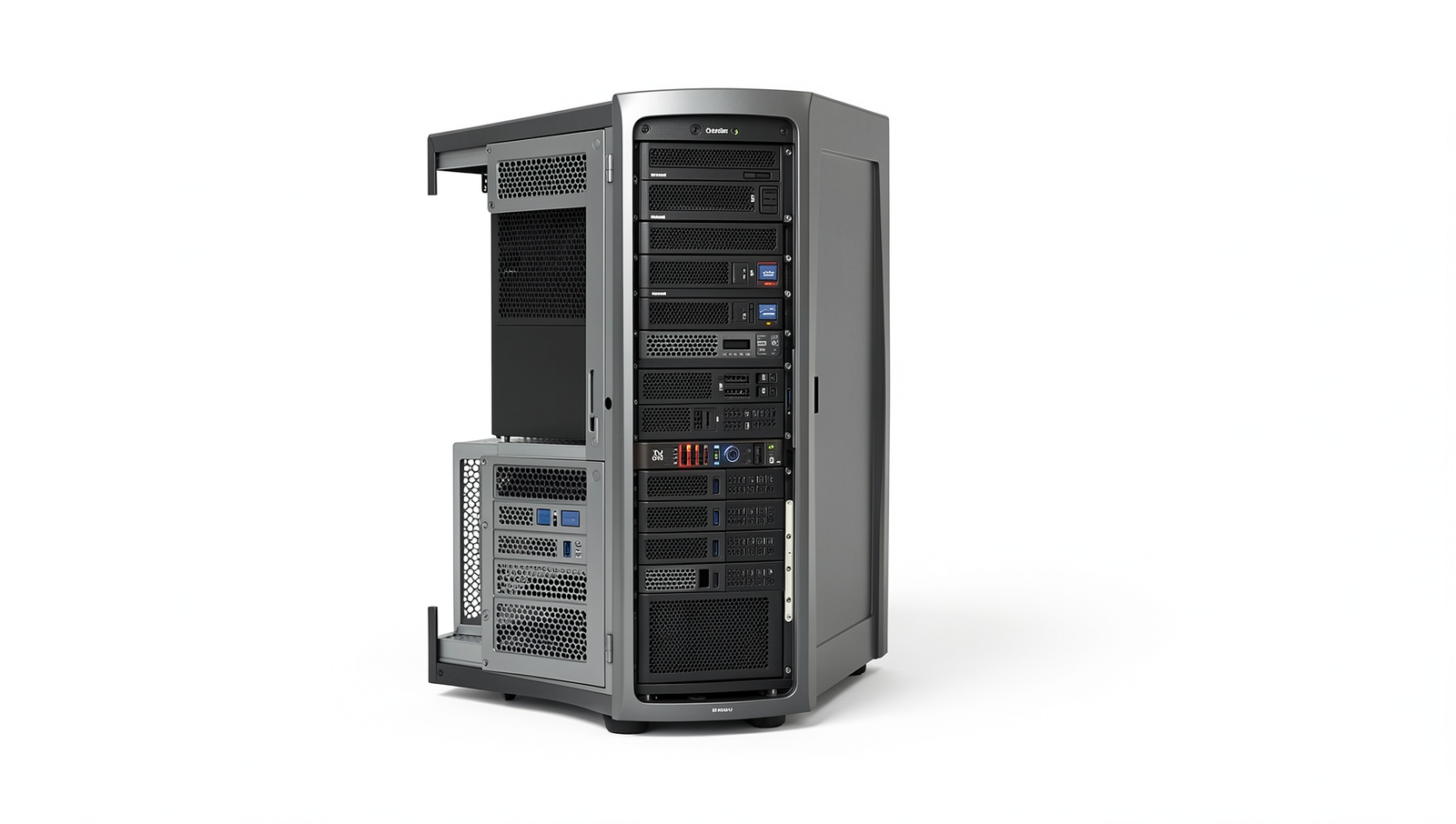
When exploring the Inside Your PC storage, it’s essential to understand the various types of storage available. The three primary types are Hard Disk Drives (HDD), Solid State Drives (SSD), and Non-Volatile Memory Express (NVMe) drives. Each of these storage types has unique characteristics that affect performance, durability, and capacity.
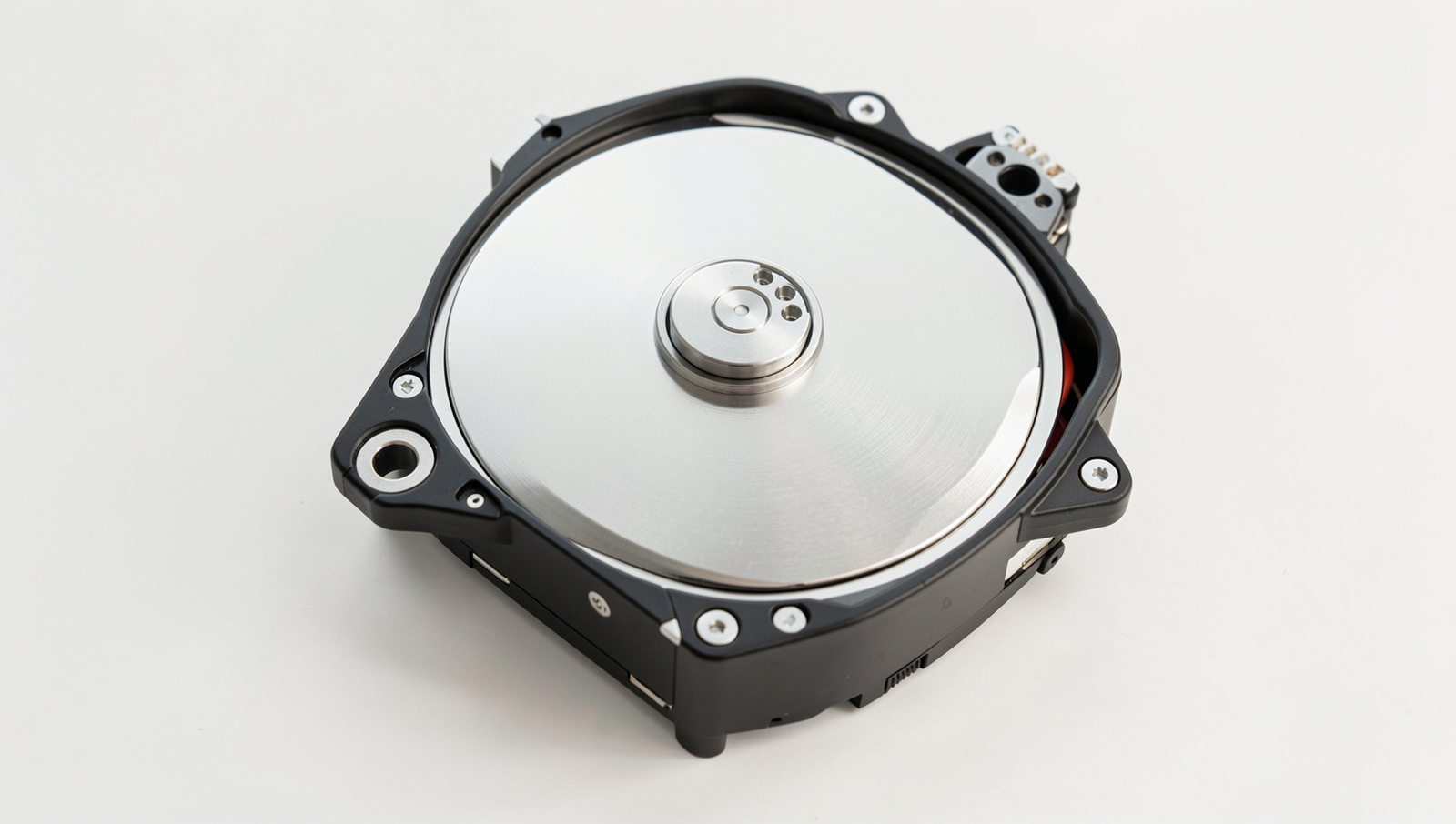
- Hard Disk Drives (HDD): These are traditional storage devices that use spinning disks to read and write data. They typically offer larger storage capacities at a lower cost. However, their mechanical nature makes them slower and more prone to failure due to physical damage.
- Solid State Drives (SSD): Unlike HDDs, SSDs use flash memory to store data, resulting in significantly faster read and write speeds. They are more durable since they have no moving parts, but they tend to be more expensive per gigabyte compared to HDDs.
- Non-Volatile Memory Express (NVMe): NVMe drives are a type of SSD that connects directly to the motherboard via the PCIe interface. This allows for even faster data transfer speeds, making them ideal for high-performance tasks such as gaming and video editing.
The differences in speed, durability, and capacity between these storage types can greatly impact overall PC performance. For example, using an NVMe drive for your operating system can significantly reduce boot times and improve application load times compared to an HDD. On the other hand, HDDs are often used for bulk storage of files like photos and videos due to their larger capacity and lower cost.
In summary, understanding the various types of storage available can help you make informed decisions about your PC setup. Each type has its strengths and weaknesses, making them suitable for different use cases, from everyday computing to high-performance gaming.
The Role of the Motherboard
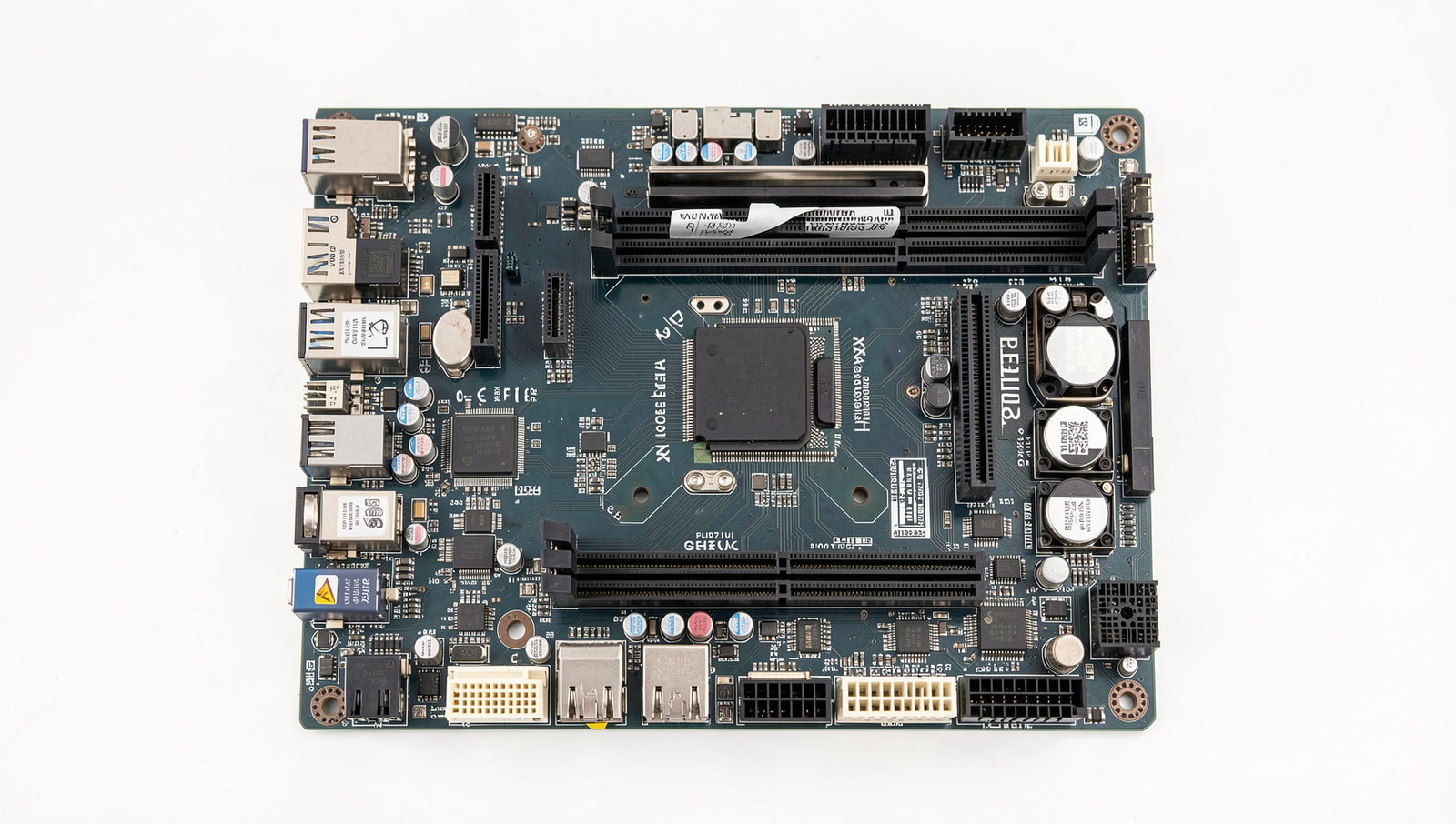
Inside Your PC storage architecture, the motherboard plays a crucial role in connecting various storage devices to the central processing unit (CPU) and facilitating communication between them. The motherboard serves as the backbone of the computer, providing the necessary interfaces and pathways for data transfer. Understanding how these connections work is essential for optimizing storage performance and ensuring compatibility with different components.
One of the primary ways the motherboard connects storage devices is through interfaces such as SATA (Serial Advanced Technology Attachment) and PCIe (Peripheral Component Interconnect Express). SATA is commonly used for traditional hard drives and solid-state drives (SSDs), allowing for reliable data transfer at speeds up to 6 Gbps. In contrast, PCIe is a newer interface that offers significantly higher speeds, making it ideal for high-performance SSDs. For instance, NVMe (Non-Volatile Memory Express) drives utilize the PCIe interface to achieve data transfer rates that can exceed 32 Gbps, vastly improving system responsiveness.
Another critical aspect is chipset compatibility. The motherboard’s chipset determines which storage technologies are supported. For example, a motherboard with an older chipset may not support the latest NVMe drives, limiting the potential for speed and performance. Therefore, when selecting a motherboard, it is essential to ensure that it is compatible with the desired storage devices.
- Check the number of SATA ports available for connecting multiple drives.
- Look for PCIe slots that can accommodate high-speed NVMe SSDs.
- Consider the chipset’s capabilities regarding RAID configurations for data redundancy.
Lastly, the design of the motherboard can impact storage performance. Factors such as the layout of traces, the quality of components, and thermal management all play a role in how efficiently data is transferred between the CPU and storage devices. A well-designed motherboard can minimize latency and maximize throughput, ensuring that your storage devices perform at their best.
File Systems and Data Management
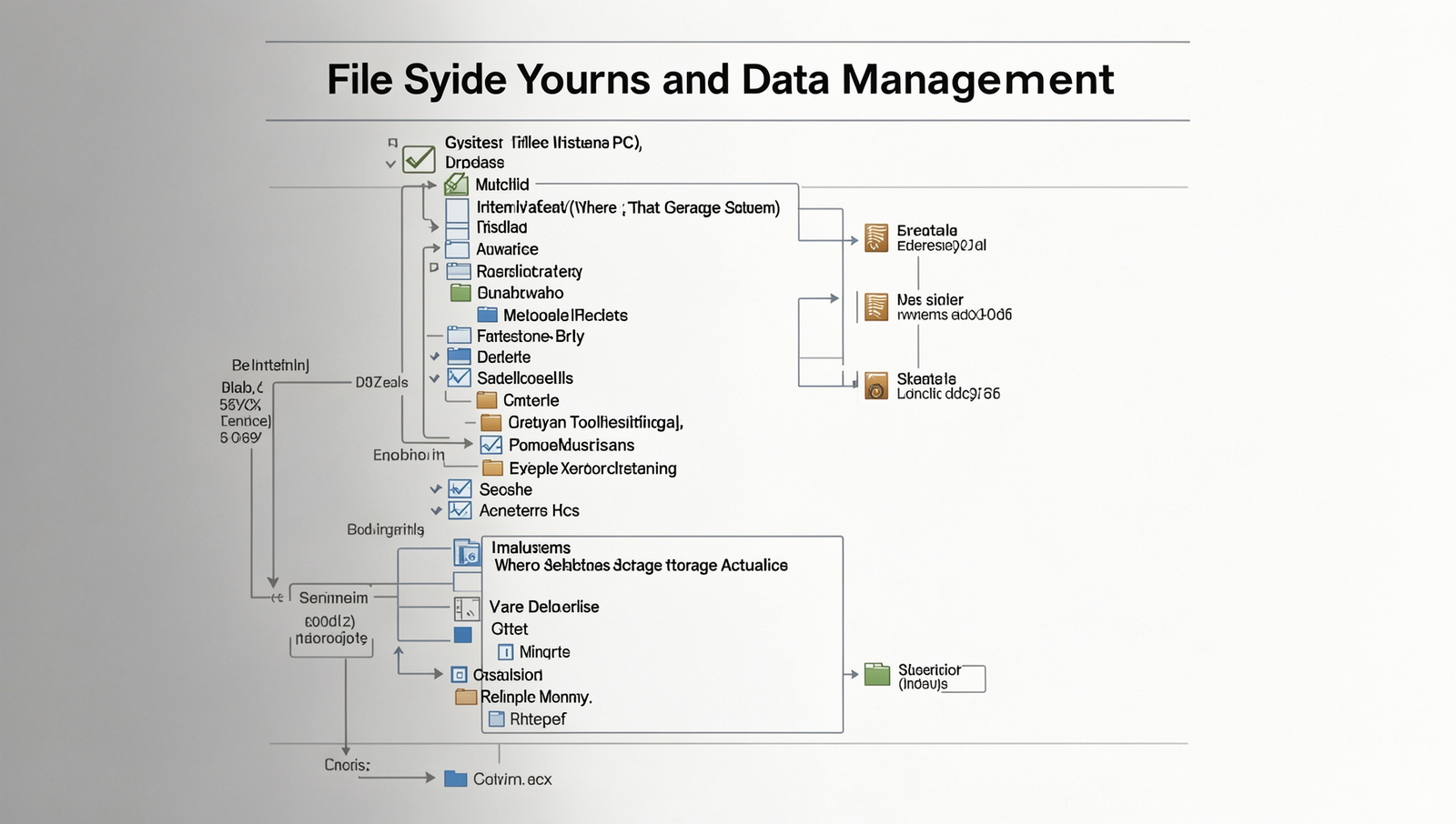
When exploring the intricacies of Inside Your PC storage, it’s essential to understand the role of file systems. A file system is a method used by operating systems to organize and manage data on storage devices. The most common file systems include NTFS, FAT32, and exFAT, each with its unique features and limitations.
NTFS (New Technology File System) is the default file system for Windows operating systems. It supports large file sizes, file permissions, and advanced features like journaling, which helps prevent data corruption. FAT32 (File Allocation Table 32) is an older file system that is widely compatible with various devices, but it has a maximum file size limit of 4 GB. exFAT (Extended File Allocation Table) was designed to bridge the gap between NTFS and FAT32, allowing larger file sizes and better compatibility with flash drives and external storage.
The choice of file system can significantly impact storage efficiency. For instance, NTFS is ideal for internal drives where security and performance are priorities, while FAT32 might be more suitable for smaller, portable drives due to its compatibility. Understanding how these file systems manage data is crucial for optimizing storage usage.
- NTFS: Supports large files, security features, and is suitable for internal drives.
- FAT32: Compatible with many devices but limited to 4 GB file sizes.
- exFAT: Ideal for external drives, supporting larger files and better compatibility.
Additionally, partitions play a vital role in storage management. A partition is a division of a hard drive that allows multiple file systems to coexist on a single physical disk. This can enhance performance and organization, enabling users to separate system files from personal data or to run different operating systems on the same machine.
Future of Storage Technology
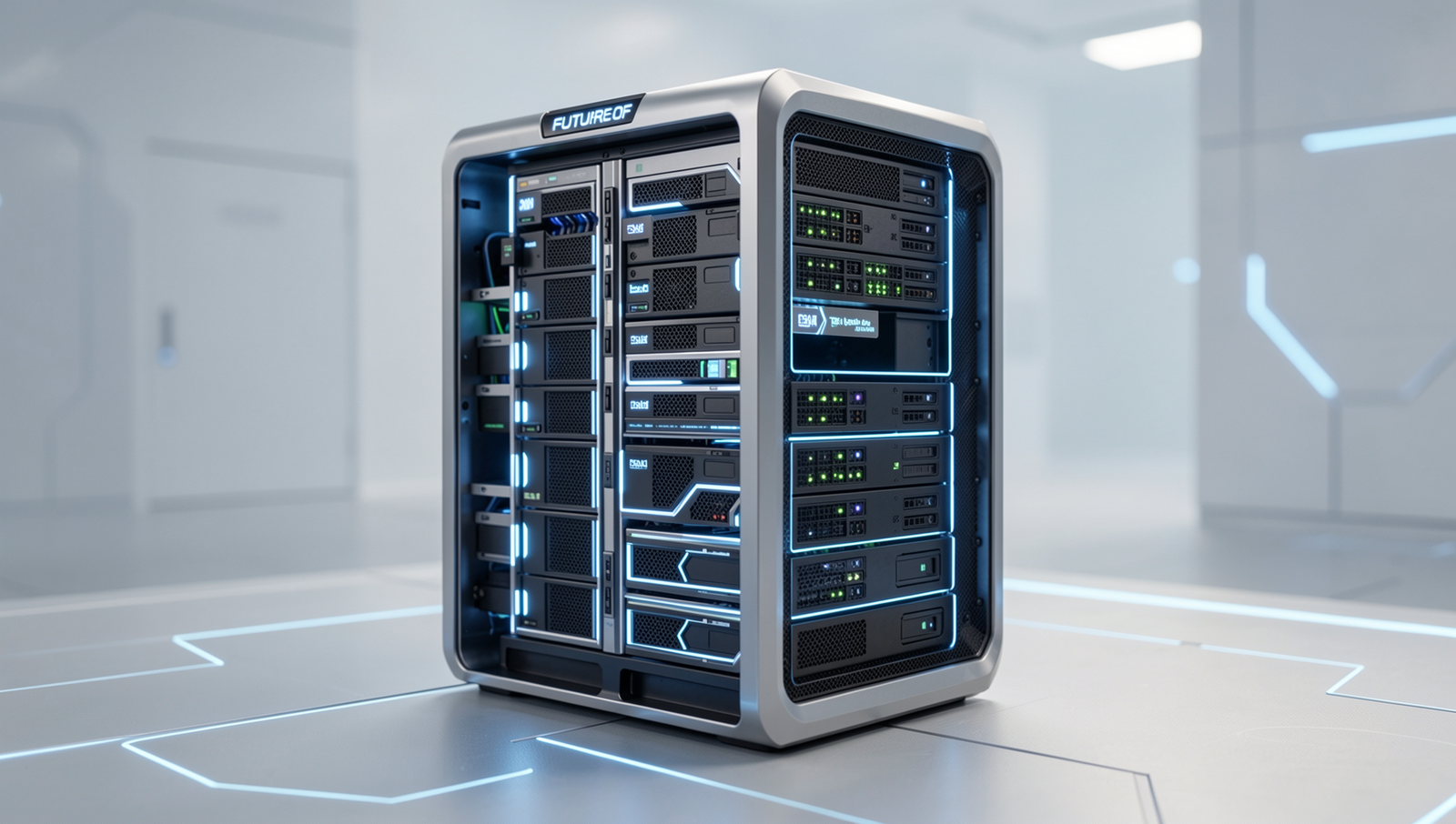
As technology continues to evolve, the landscape of storage solutions is undergoing significant transformations. Emerging storage technologies such as 3D NAND and Intel’s Optane are at the forefront of this evolution, offering improved performance and efficiency. 3D NAND technology stacks memory cells vertically, allowing for higher density and faster data access. This innovation not only increases storage capacity but also enhances durability and power efficiency, making it a popular choice for modern SSDs.
On the other hand, Optane technology utilizes 3D XPoint memory, which bridges the gap between DRAM and traditional storage. This results in faster data retrieval speeds and lower latency, providing a substantial boost for applications that require quick access to large datasets. As these technologies mature, we can expect even greater advancements in both speed and capacity.
- Trends in Storage Capacity: As consumer demands grow, manufacturers are consistently pushing the limits of storage capacity. We are witnessing drives that can hold multiple terabytes of data in increasingly compact formats.
- Speed Advancements: The transition from SATA to NVMe interfaces has revolutionized data transfer speeds, making it possible to achieve read and write speeds that were once unimaginable.
Moreover, cloud storage is playing an integral role in the future of computing. With the rise of remote work and digital collaboration, cloud solutions provide scalable storage options that can adapt to varying needs. This shift not only alleviates the pressure on local storage but also enhances accessibility and data security.
Looking ahead, we can predict that the evolution of PC storage will continue to focus on speed, capacity, and integration with cloud technologies. As we delve deeper into the realm of Inside Your PC storage, the future promises a seamless blend of local and cloud storage solutions, catering to the ever-growing demands of users.
Conclusion
Understanding the intricacies of Inside Your PC storage is essential for anyone looking to optimize their computer’s performance. From the hard drives to the solid-state drives, each component plays a crucial role in how data is stored and accessed. By familiarizing yourself with these elements, you can make informed decisions about upgrades and maintenance. This knowledge not only enhances your computing experience but also prolongs the lifespan of your hardware.
As you consider the next steps, think about evaluating your current storage solutions. Are they meeting your needs? Upgrading to a larger or faster drive can significantly improve your system’s efficiency. Additionally, regular maintenance, such as defragmentation and cleaning up unnecessary files, can help maintain optimal performance. By taking proactive measures, you can ensure that your PC remains efficient and capable of handling your storage demands effectively.
Frequently Asked Questions
What is the primary storage component in a PC?
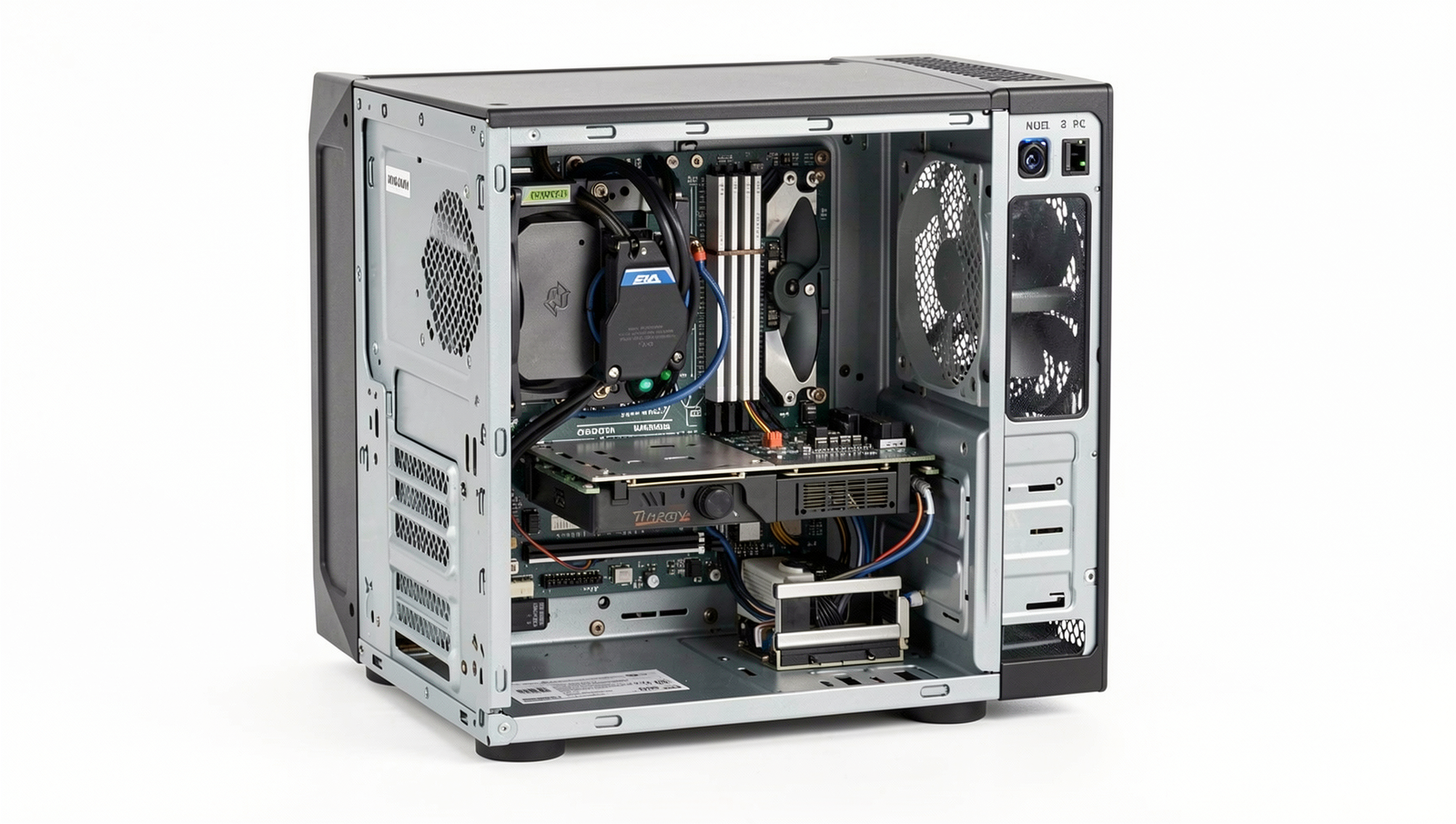
The primary storage component in a PC is typically a hard disk drive (HDD) or a solid-state drive (SSD). These drives store the operating system, applications, and user data, allowing the computer to access and manage files efficiently.
How does data get stored on these drives?
Data is stored on drives through a process of writing and reading binary information. In HDDs, magnetic platters spin while read/write heads move to access data. In SSDs, flash memory chips store data electronically, allowing for faster access and retrieval.
What is the difference between HDD and SSD?
The main difference between HDD and SSD lies in their