Tech Reset: Hidden Ways to Make an Old PC Feel New
 techbest@gmail.com
September 1, 2026
techbest@gmail.com
September 1, 2026
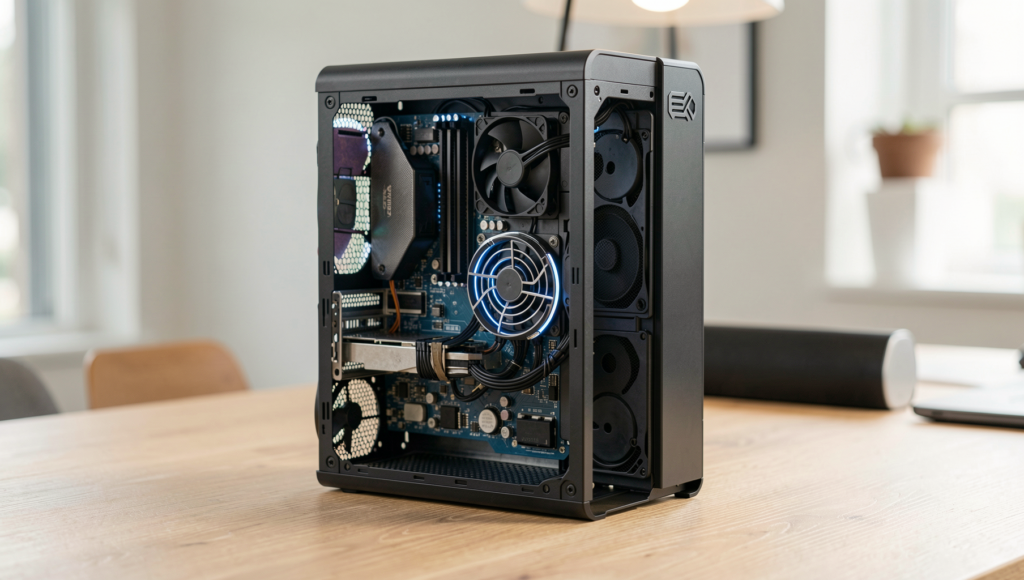
Revitalize your old PC with these hidden tech tips.
8 min read • 1,649 words
Table of Contents
ToggleTech Reset: Hidden Ways to Make an Old PC Feel New
In today’s fast-paced digital world, the performance of your computer can significantly impact your productivity and overall experience. If you’re struggling with an old PC that feels sluggish, a “Tech Reset” might be just what you need. This article will explore various hidden methods to breathe new life into your aging machine, making it feel fresh and responsive again. Understanding these techniques is essential, as they can save you the cost of purchasing a new device while enhancing your current setup.
Readers will learn about practical upgrades, such as increasing RAM to improve multitasking capabilities and replacing outdated hard drives with solid-state drives (SSDs) for faster boot and load times. Additionally, we’ll discuss the importance of regular maintenance, like cleaning dust from components to prevent overheating, updating your operating system for better security, and utilizing lightweight software alternatives to ensure smoother performance. With these tips, your old PC can feel like new again.
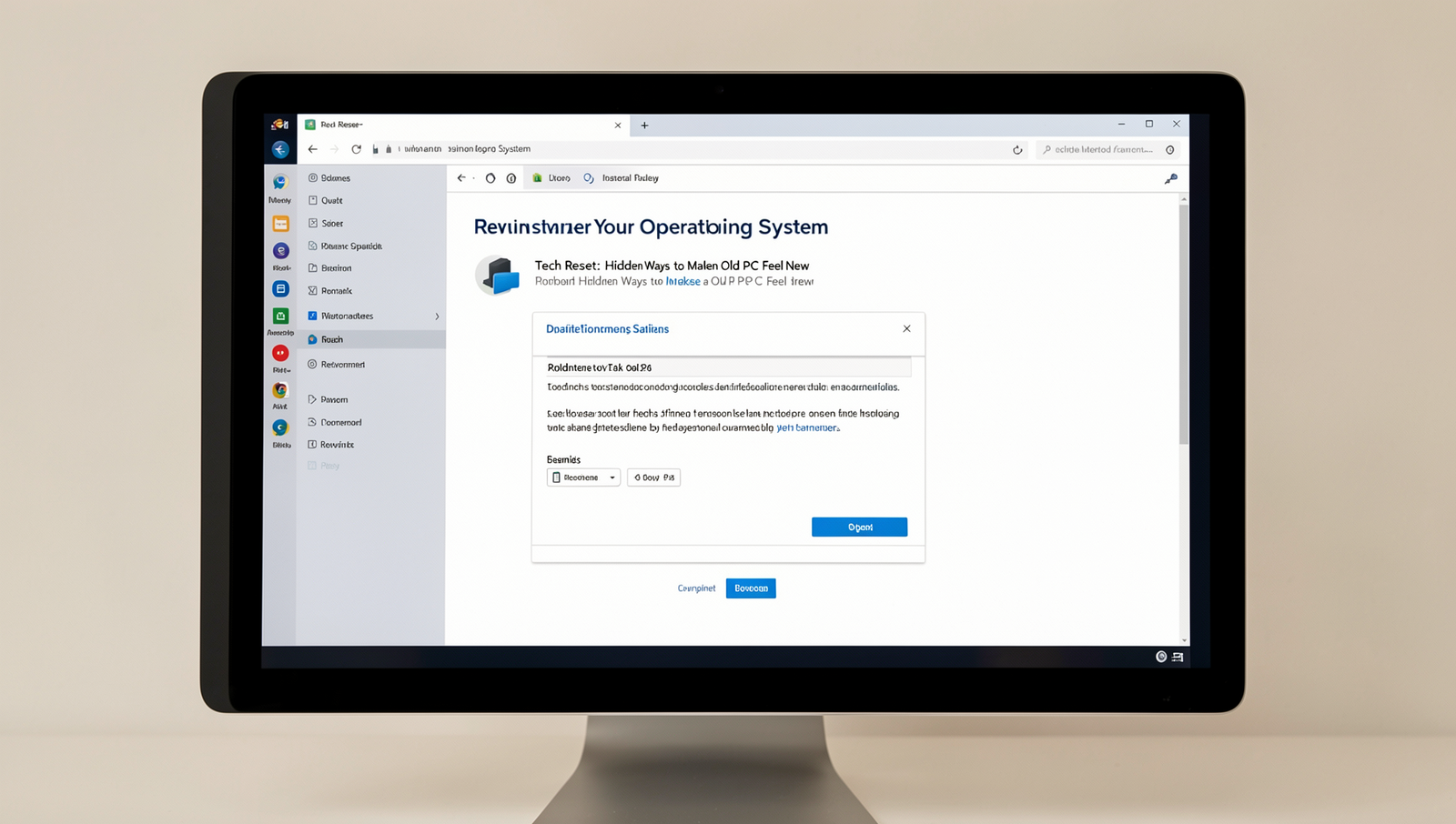
Revitalize Your Operating System
One of the most effective ways to breathe new life into an old PC is to revitalize its operating system. This process can significantly enhance performance, improve speed, and eliminate unnecessary clutter. Here are several strategies to consider:
- Perform a Clean Installation: A clean installation of your operating system can remove bloatware and unwanted applications that may have accumulated over time. This not only frees up valuable disk space but also enhances system performance. To perform a clean installation, you can use the following command:
diskpartAfter launching the command, follow the prompts to format your drive and install the OS from a bootable USB or DVD.
- Update All Drivers: Keeping your drivers up to date is crucial for ensuring compatibility and efficiency. Outdated drivers can lead to performance issues and hardware malfunctions. You can check for updates using the Device Manager or by visiting the manufacturer’s website. Use this command to access Device Manager:
devmgmt.msc- Optimize Startup Programs: Reducing the number of programs that launch at startup can significantly speed up boot times. You can manage startup applications through the Task Manager. Open Task Manager with:
taskmgrThen navigate to the Startup tab and disable any unnecessary applications.
- Utilize Built-in Tools: Most operating systems come with built-in tools designed to optimize performance. For instance, you can run disk cleanup utilities to remove temporary files and other unnecessary data. Use the following command to access Disk Cleanup:
cleanmgrBy implementing these strategies, you can effectively reset your tech and make your old PC feel new again. A little effort can lead to a noticeable improvement in your computing experience.
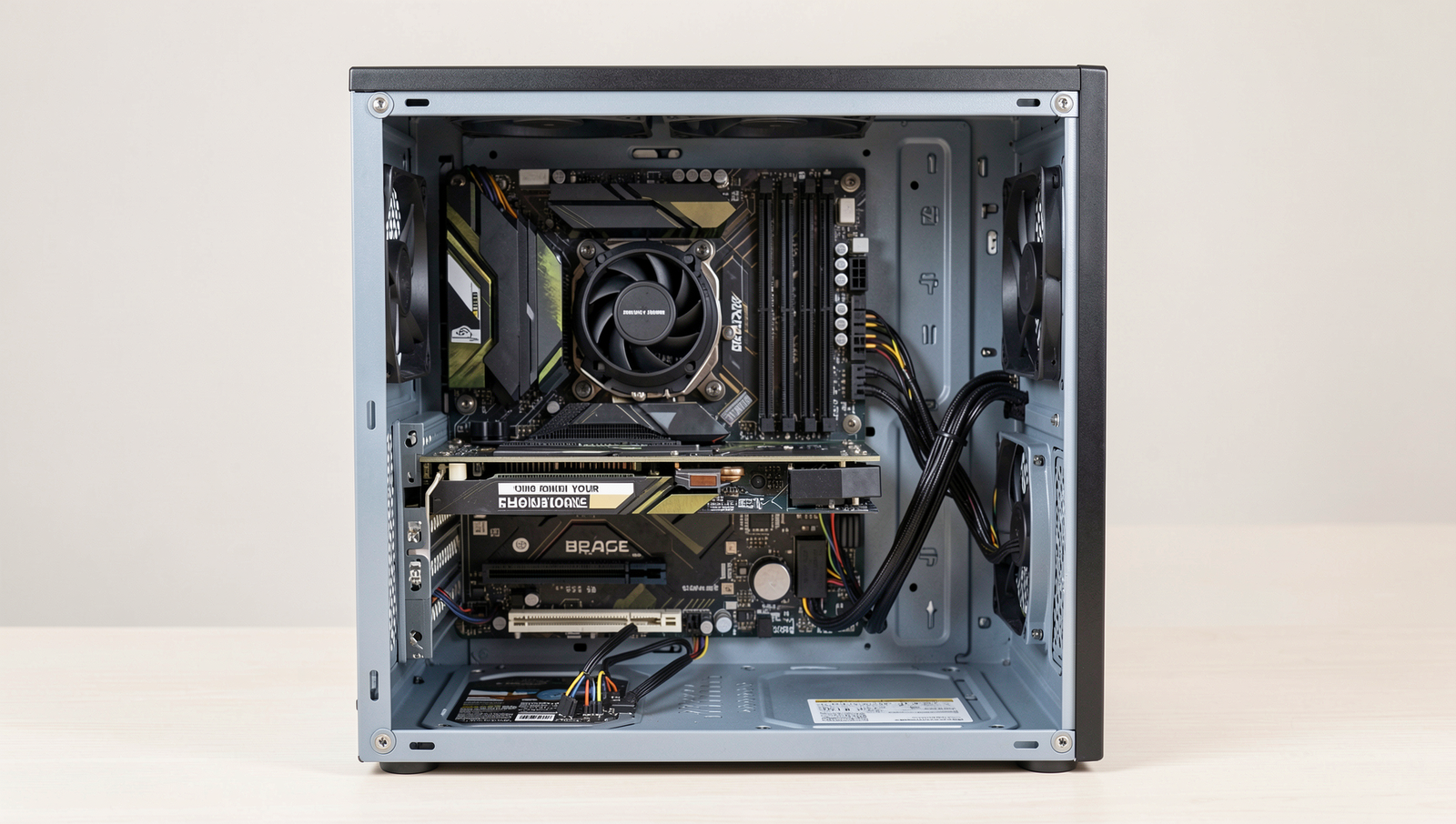
Upgrade Your Hardware
One of the most effective ways to breathe new life into an aging PC is by upgrading its hardware components. This process, often referred to as a “Tech Reset,” can significantly enhance performance and user experience without the need for a complete system overhaul. Here are some key upgrades to consider:
- Replace the Hard Drive with a Solid-State Drive (SSD): One of the most impactful upgrades is swapping out a traditional hard disk drive (HDD) for an SSD. SSDs are much faster, leading to quicker boot times and faster application launches. Users often report that their systems feel like new after this upgrade. To replace the hard drive, you can use the following command to clone your existing drive to the new SSD:
sudo dd if=/dev/sda of=/dev/sdb bs=64K conv=noerror,sync- Increase RAM: Upgrading your RAM can drastically improve multitasking capabilities and overall system performance. If your PC is struggling with running multiple applications simultaneously, adding more RAM can provide the necessary boost. For example, moving from 8GB to 16GB of RAM can make a noticeable difference in performance. To check your current RAM usage, you can use:
free -h- Consider Upgrading the Graphics Card: If you use your PC for gaming, video editing, or graphic design, upgrading the graphics card can enhance visual performance. A more powerful GPU can handle demanding applications and games with ease, providing a smoother experience. Before purchasing a new graphics card, ensure that your power supply can support it and that it fits in your case.
By focusing on these hardware upgrades, you can effectively execute a Tech Reset on your old PC, making it feel fresh and responsive once again. Each upgrade not only improves performance but also extends the lifespan of your machine, allowing you to enjoy your computing experience without the need for a costly new purchase.
Enhance Your Software Experience
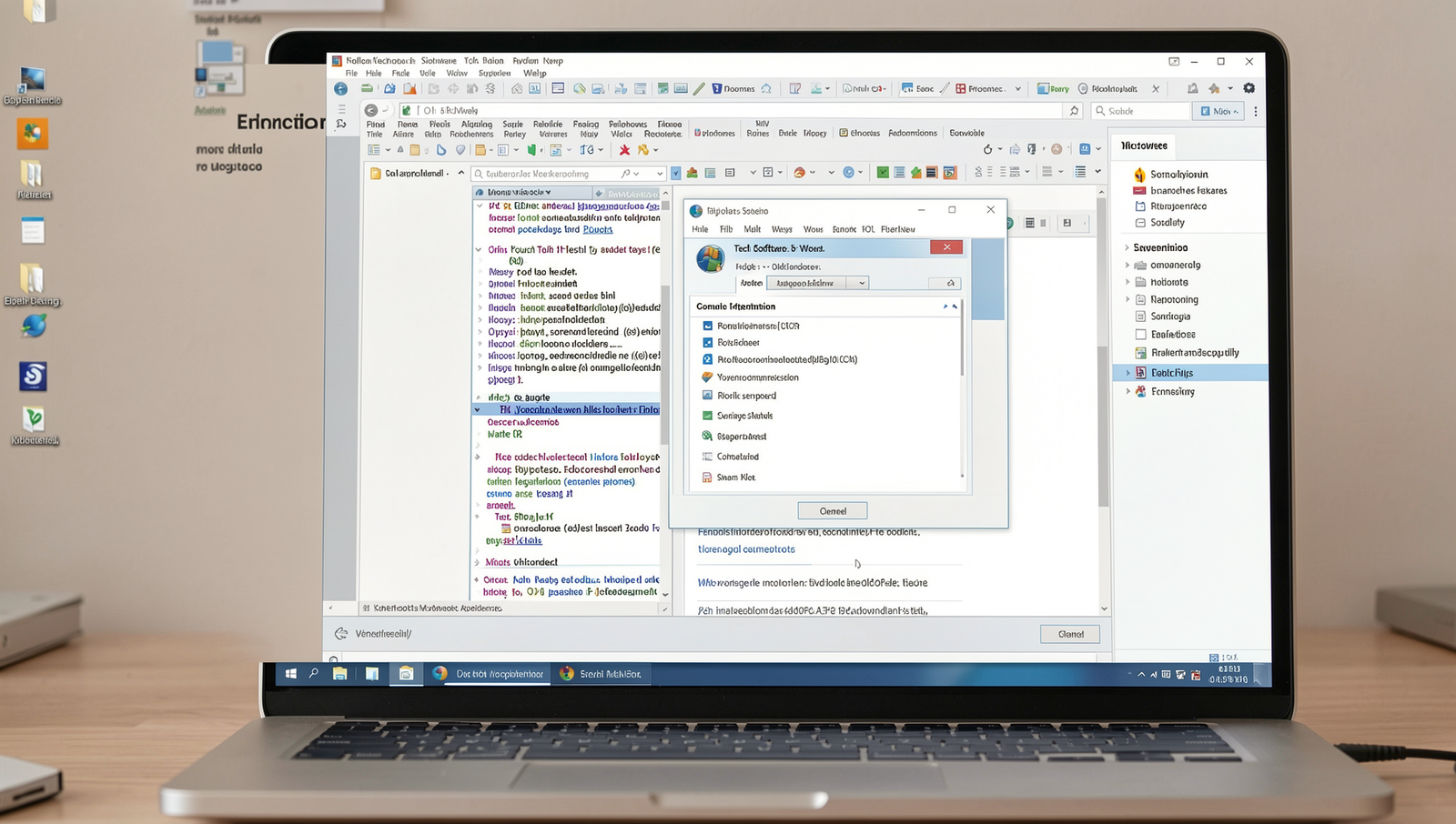
When it comes to giving your old PC a much-needed boost, enhancing your software experience is a crucial step. By making smart choices about the applications you use, you can significantly improve performance and responsiveness. Here are some effective strategies to consider.
- Install Lightweight Alternatives: Many popular applications are resource-heavy and can slow down your system. Consider switching to lightweight alternatives that offer similar functionality without the bloat. For example, instead of using Microsoft Office, you could opt for LibreOffice or Google Docs. For image editing, GIMP is a great substitute for Adobe Photoshop.
- Utilize System Monitoring Tools: Keeping an eye on your system’s resource usage can help you identify which applications are consuming the most memory and CPU. Tools like
Task Manageron Windows orActivity Monitoron macOS can provide insights into performance bottlenecks. Additionally, third-party tools such asProcess ExplorerorHWMonitorcan give you a deeper look into your system’s health. - Explore Virtualization Software: If you need to run multiple operating systems for testing or development purposes, virtualization software can be a game-changer. Programs like
VirtualBoxorVMware Workstationallow you to run different OS environments without the need for additional hardware. This can be particularly useful for developers or users who want to experiment with different setups.
By implementing these strategies, you can breathe new life into your old PC. A tech reset doesn’t have to mean buying new hardware; sometimes, a few software tweaks can make all the difference.
Optimize Your User Experience
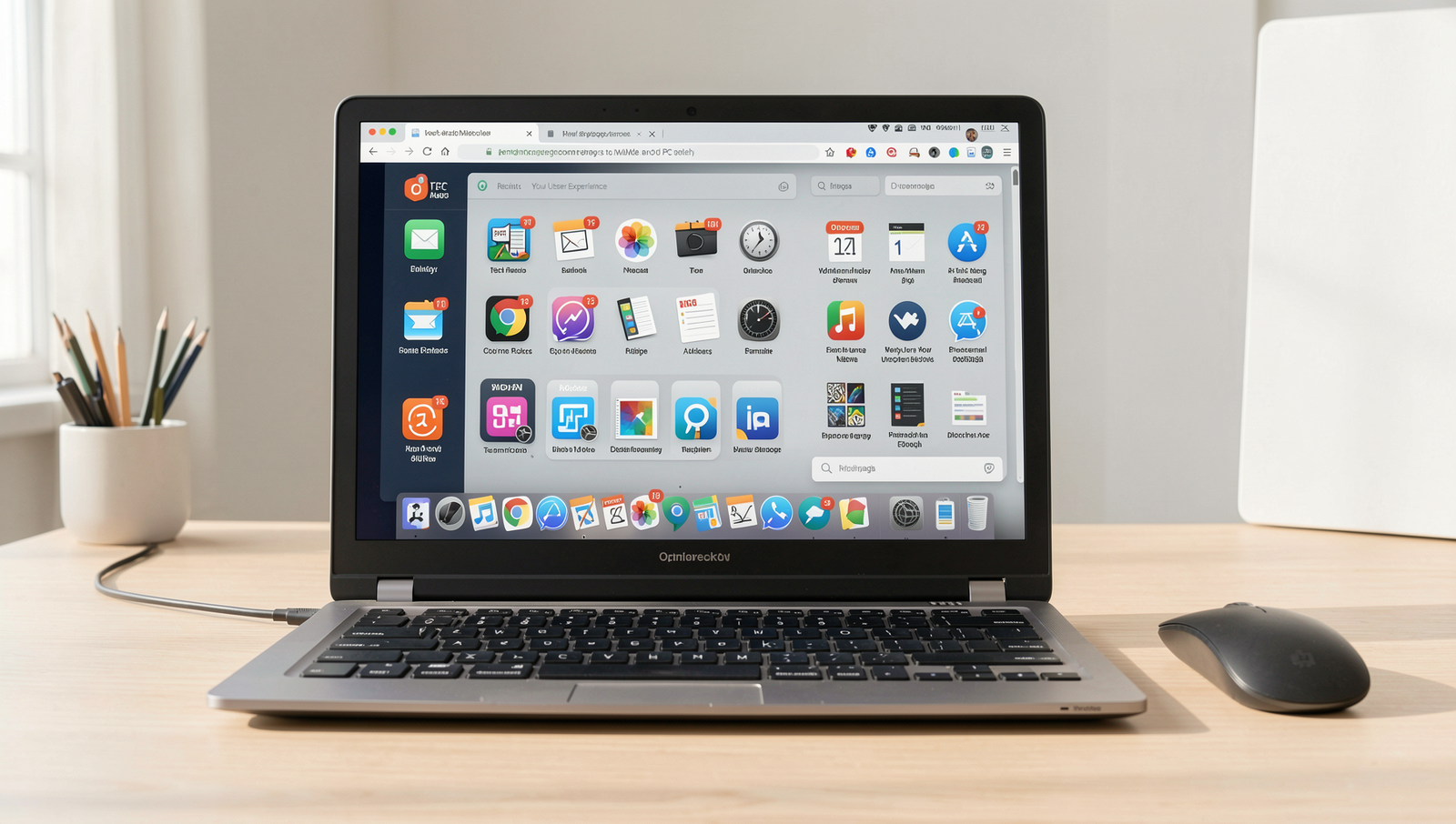
One of the most effective ways to rejuvenate an old PC is by optimizing your user experience. A cluttered desktop can lead to distractions and inefficiencies. Start by customizing your desktop environment to reduce clutter and improve accessibility. Organize your files into folders, and consider using a minimalist wallpaper that doesn’t overwhelm your screen. You can also remove unnecessary icons and shortcuts, leaving only the most frequently used applications visible. This not only makes your workspace look cleaner but also helps you focus on the tasks at hand.
Another way to enhance your productivity is by implementing keyboard shortcuts and automation tools. These can significantly streamline your tasks, allowing you to accomplish more in less time. For instance, you can create shortcuts for frequently used applications or commands. In Windows, you can assign a keyboard shortcut to any application by right-clicking the shortcut, selecting ‘Properties’, and then entering your desired key combination in the ‘Shortcut key’ field. Additionally, consider using automation tools like AutoHotkey or Task Scheduler to automate repetitive tasks. This can save you valuable time and reduce the strain of manual operations.
Lastly, adjusting visual effects and settings can greatly improve performance on older systems. Navigate to your system settings and reduce or disable visual effects such as animations and shadows. In Windows, you can do this by going to Control Panel > System > Advanced system settings, then under the Performance section, click on Settings. Choose the option for Adjust for best performance to disable unnecessary effects. By making these adjustments, you can breathe new life into your aging computer.
Conclusion
In summary, a Tech Reset can significantly enhance the performance and longevity of an old PC, making it feel new again. By implementing strategies such as upgrading hardware components, optimizing software settings, and performing regular maintenance, users can breathe new life into their devices. Simple actions like cleaning up unnecessary files, uninstalling unused applications, and ensuring that the operating system is up to date can lead to noticeable improvements in speed and efficiency. Additionally, exploring lightweight alternatives for software can further reduce the strain on older hardware.
As you embark on your Tech Reset journey, consider which upgrades or optimizations will best suit your needs. Whether it’s adding more RAM, switching to an SSD, or simply decluttering your system, each step contributes to a more responsive and enjoyable computing experience. Embrace the opportunity to revitalize your old PC, and enjoy the benefits of a faster, more efficient machine without the need for a costly replacement.
Frequently Asked Questions
What are some simple upgrades to improve my old PC’s performance?
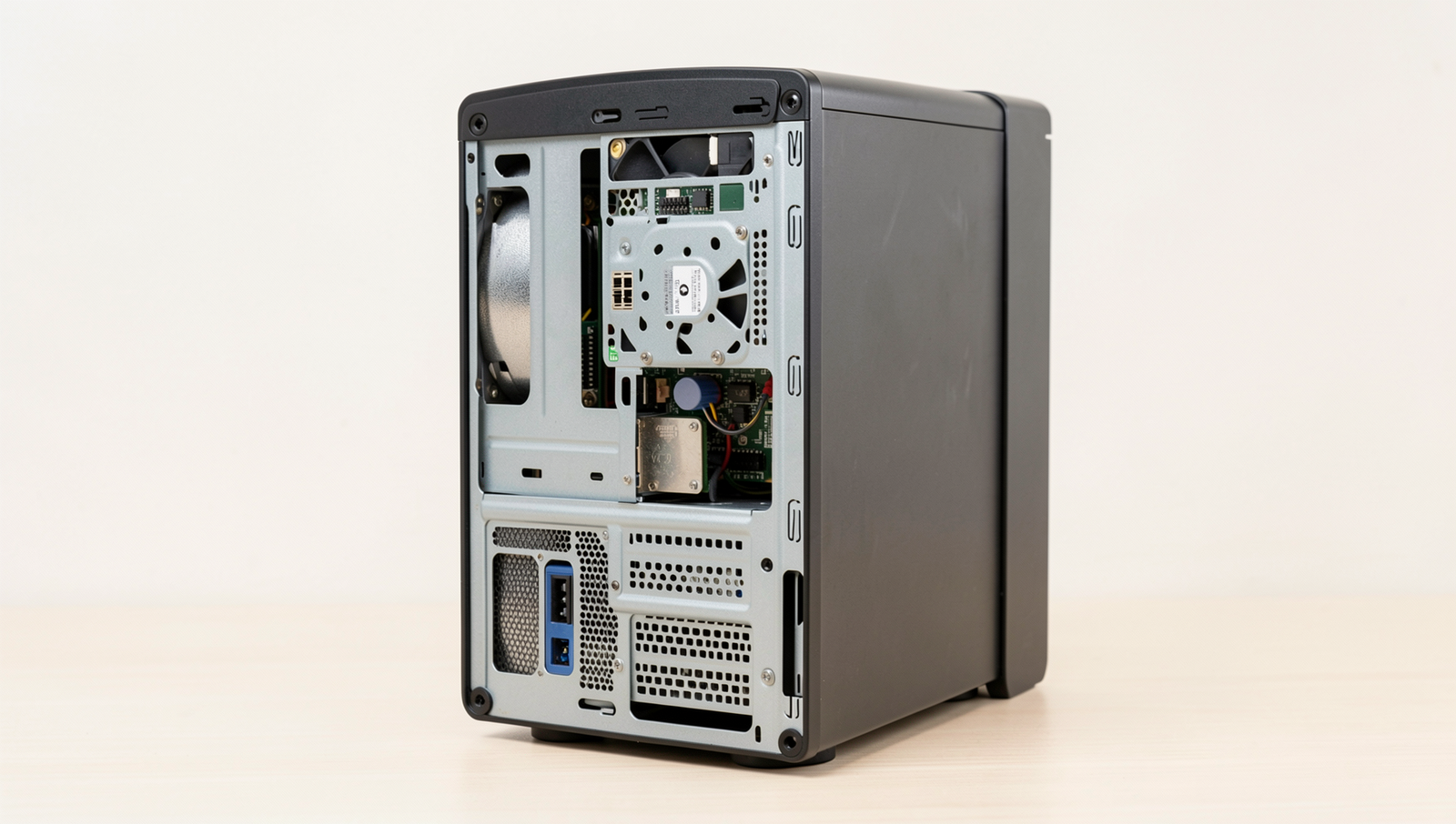
Upgrading your old PC can be straightforward. Consider adding more RAM, replacing the hard drive with a solid-state drive (SSD), or upgrading to a faster CPU if compatible. These upgrades can significantly enhance speed and responsiveness without needing a complete overhaul.
How can I optimize my old PC’s software?
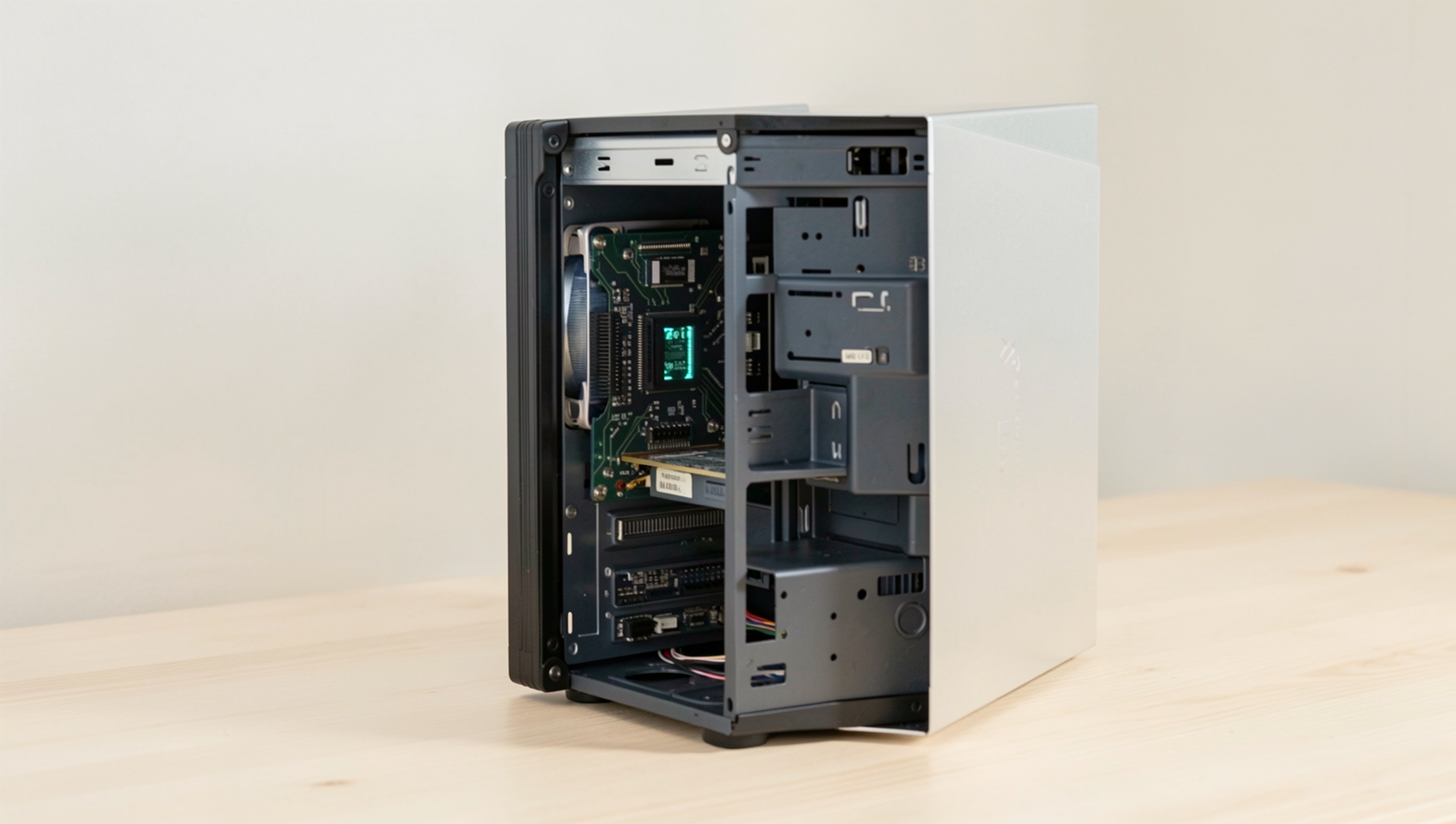
To optimize software, start by uninstalling unnecessary programs that consume resources. Regularly update your operating system and drivers, and use disk cleanup tools to remove temporary files. Additionally, consider disabling startup programs to improve boot times and overall performance.
Is it worth upgrading the graphics card in an old PC?
Upgrading the graphics card can be beneficial, especially for gaming or graphic-intensive tasks. However, ensure your motherboard and power supply can support the new card. If the rest of the system is outdated, consider a more comprehensive upgrade instead.
Can cleaning my PC hardware help its performance?
Yes, cleaning your PC hardware can improve performance. Dust buildup can cause overheating, leading to throttling and reduced efficiency.