Inside Android: What Happens When You Remove an App
 techbest@gmail.com
September 1, 2026
techbest@gmail.com
September 1, 2026
Exploring app removal on Android devices.
8 min read • 1,644 words
Table of Contents
ToggleInside Android: What Happens When You Remove an App
When you decide to remove an app from your Android device, it may seem like a simple task, but there’s much more happening behind the scenes. Understanding the process of app removal is crucial for optimizing your device’s performance and managing storage effectively. In this article, we will explore what happens when you uninstall an app, why it matters, and the implications for your device’s overall functionality.
Removing an app not only frees up valuable storage space but also can enhance your device’s performance by eliminating unnecessary background processes. However, it’s important to note that uninstalling an app typically deletes its data unless you have backed it up. Additionally, some applications may leave behind residual files, which can clutter your device. By the end of this article, you’ll learn how to effectively manage your apps and understand the consequences of their removal.
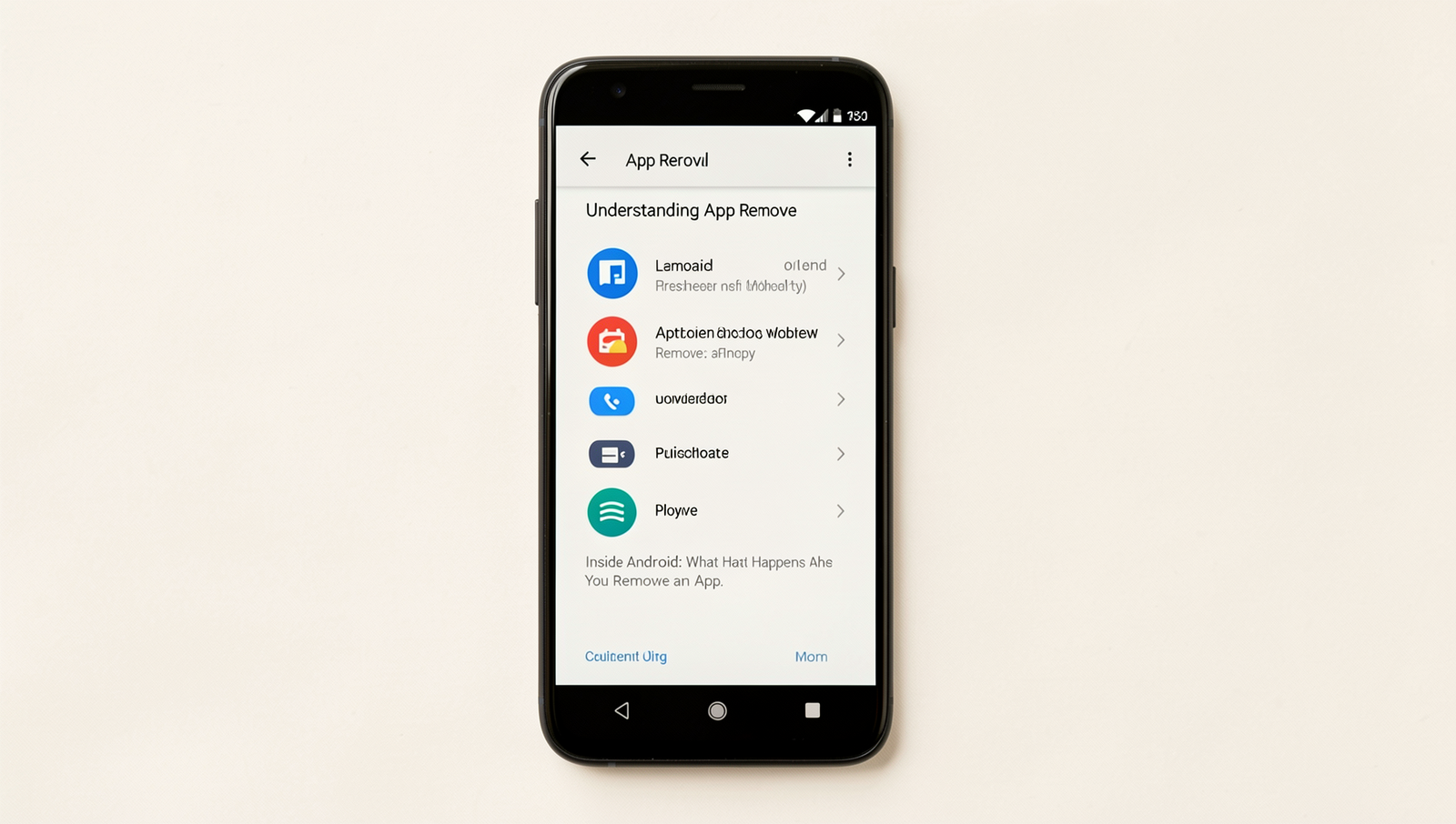
Understanding App Removal
In the context of Android, app removal refers to the process of deleting an application from a device, thereby freeing up storage space and potentially improving performance. This action can be performed through the device’s settings or directly from the app drawer. When a user decides to remove an app, they are typically looking to streamline their device’s functionality or eliminate unused applications.
It is essential to differentiate between uninstalling and disabling an app. Uninstalling an app completely removes it from the device, along with its data and cache. In contrast, disabling an app merely prevents it from running and hides it from the app drawer, but the app remains installed on the device. This distinction is crucial for users who may want to reactivate an app later without needing to download it again.
There are several common reasons why users choose to remove apps from their Android devices:
- Storage Management: Many users find that their devices are running low on storage space and opt to remove apps that they no longer use.
- Performance Improvement: Removing apps can lead to a smoother device experience, as fewer applications running in the background can enhance overall performance.
- Battery Conservation: Some apps consume significant battery life, prompting users to uninstall them to extend their device’s battery duration.
- Security Concerns: Users may remove apps that they perceive as a security risk or those that have not been updated in a long time.
The impact of app removal on device performance can be significant. By uninstalling unnecessary applications, users can experience faster load times, improved responsiveness, and enhanced battery life. Additionally, freeing up storage space allows for more efficient operation of the remaining apps and the operating system itself.
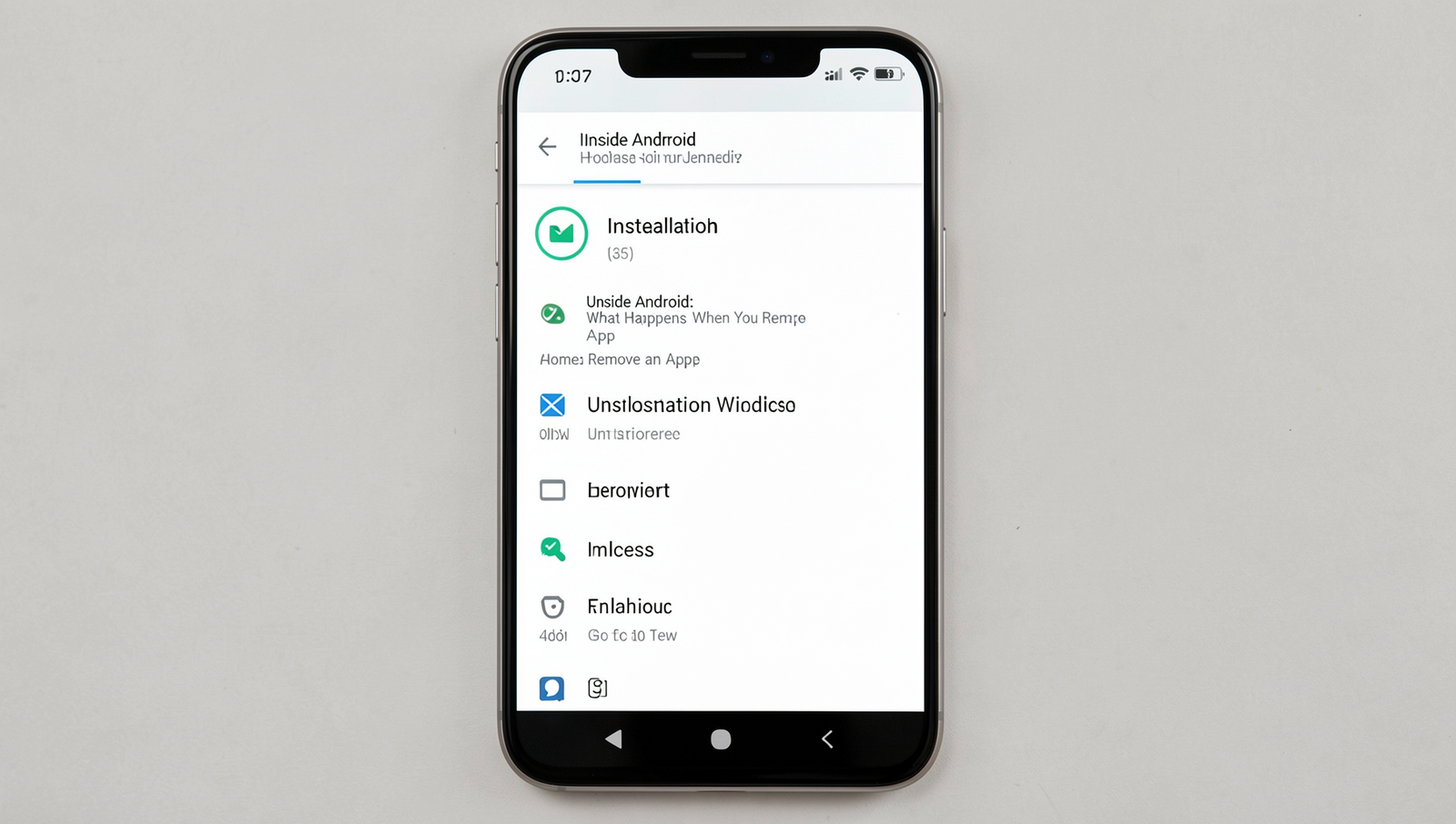
The Uninstallation Process
Uninstalling an app on Android is a straightforward process, but understanding what happens behind the scenes can provide valuable insights into how the operating system manages applications. Here’s a step-by-step guide on how to uninstall an app:
- Open the Settings app on your Android device.
- Scroll down and select Apps or Application Manager.
- Find the app you wish to uninstall from the list and tap on it.
- Tap the Uninstall button.
- Confirm your choice when prompted.
Alternatively, you can uninstall an app directly from the home screen or app drawer by long-pressing the app icon and selecting the Uninstall option that appears.
When you uninstall an app, the data associated with it is typically removed from your device. This includes user settings, cached files, and any other data that the app may have stored. However, some apps may leave behind residual files or data, particularly if they were designed to store information in a way that is not fully removed during uninstallation. For example, social media apps might retain some data linked to your account on their servers, but local data will be wiped from your device.
The Google Play Store plays a crucial role in app removal. When you uninstall an app, the Play Store ensures that the app is no longer listed in your installed applications. It also helps manage updates and permissions associated with the app, ensuring that once it is uninstalled, the permissions granted to it are revoked.
User permissions also affect the uninstallation process. If an app has been granted specific permissions, these will be automatically revoked upon uninstallation. This is an important security feature, as it prevents leftover permissions from being exploited after the app is removed.
Aftermath of App Removal
When you remove an app from your Android device, several changes occur that can significantly impact your overall user experience. Understanding these effects is crucial for optimizing your device’s performance and storage management.
One of the most immediate consequences of app removal is the release of storage space. Android devices often come with limited storage capacity, and apps can take up a considerable amount of this space. When you uninstall an app, the space it occupied is freed up, allowing you to install new applications or store more media files. For example, if you remove a large game that was consuming 2 GB of space, that space can now be used for photos or other apps.
In addition to freeing up storage, removing an app can also enhance system resources and performance. Apps running in the background can consume CPU and RAM, leading to sluggish performance. By uninstalling unused or resource-heavy applications, you may notice an improvement in your device’s speed and responsiveness. For instance, if you frequently experience lag when switching between apps, uninstalling a few heavy apps might help alleviate that issue.
Another aspect to consider is the change in app-related notifications and settings. Once an app is removed, you will no longer receive notifications from it, which can declutter your notification shade. Additionally, any settings or preferences associated with that app will be deleted, ensuring that your device remains streamlined.
However, it is essential to be aware of potential residual files left behind after app removal. Some applications may leave behind cache files or data that can still occupy storage space. To manage these residual files, you can use the following command to clear cache:
adb shell pm clear Alternatively, you can manually check your device’s storage settings to identify and delete any leftover files. Regularly managing these files will help maintain optimal performance and storage efficiency on your Android device.
Best Practices for Managing Apps
Managing apps on your Android device is crucial for maintaining optimal performance and ensuring that you have the most useful tools at your fingertips. Here are some tips for deciding which apps to keep or remove:
- Assess Usage: Regularly review your app usage. If you haven’t opened an app in months, it might be time to consider removing it.
- Evaluate Functionality: If an app duplicates the functionality of another, choose the one that best meets your needs and remove the other.
- Storage Considerations: If your device is running low on storage, prioritize keeping apps that are essential for daily use.
Before removing an app, it’s wise to back up your app data to avoid losing important information. Here’s how you can do it:
- Use Built-in Backup Options: Many Android devices offer built-in backup features. Go to
Settings>System>Backupand enable backup options for your apps. - Third-Party Backup Apps: Consider using apps like Helium or Titanium Backup for more comprehensive backup options. These apps can save your app data and settings before you uninstall.
Utilizing built-in tools for app management can also enhance your experience. Android provides several features to help you manage your applications effectively:
- App Info Screen: Access this by long-pressing an app icon. It allows you to view storage usage, data, and permissions.
- Uninstalling Apps: You can uninstall apps directly from the app drawer or through the
Settings>Appsmenu.
To maintain optimal device performance, regularly clean up unused apps and files. This practice not only frees up storage but also ensures that your device runs smoothly. By following these best practices, you can effectively manage your apps and enhance your Android experience.
Conclusion
Inside Android, removing an app involves a series of processes that ensure the device remains optimized and free from unnecessary clutter. When an app is uninstalled, not only are its files deleted, but the system also reclaims the resources that were previously allocated to it, such as memory and storage space. This action helps maintain the overall performance of the device, allowing users to enjoy a smoother experience. Additionally, uninstalling apps can enhance security by eliminating potential vulnerabilities associated with outdated or unused applications.
For users looking to streamline their Android experience, understanding the implications of removing apps is crucial. It is advisable to regularly assess the apps installed on your device and remove those that are no longer needed. This practice not only frees up space but also ensures that your device runs efficiently. By following these steps, you can make the most of your Android device and enjoy a more personalized and secure user experience.
Frequently Asked Questions

What happens to app data when I uninstall an app?
When you uninstall an app, the app’s data, including settings, preferences, and any stored files, are typically removed from your device. However, some apps may store data in the cloud, allowing you to recover it if you reinstall the app later.
Will uninstalling an app free up storage space?
Yes, uninstalling an app will free up storage space on your device. The space occupied by the app and its associated data will be reclaimed, allowing you to use that storage for other applications, files, or media.
Can I recover an uninstalled app?
Yes, you can recover an uninstalled app by downloading it